
7. TikTok Ad Manager
Guide to setting up on TikTok Ads Manager and best practices.
7.1 Glossary
Clarifying commonly confused terms.
Gyxen account
This is an account you created on the Gyxen Media platform.
Gyxen ad account
Gyxen ad account is a TikTok agency ad account, approved by TikTok. You are authorized to use the accounts through our platform. Here are the reasons why you should use Gyxen ad accounts:
- Agency account is a whitelist account supported directly by TikTok
- Target full of major markets such as US, EU, CA, UK...
- Accept multiple payment methods via Payoneer, USDT, Credit Card, PayPal...
- Refund balance when you want to stop running ads
- Fast, automated, and unlimited top-up: Gyxen Media Platform will support this straight away!
- Create an account automatically in just a few minutes
- Technical support
TikTok for Business Account
This is a public profile that brands and businesses can use to leverage TikTok's marketing tools and build a unified marketing strategy on the platform. To create a TikTok Business Account, you must provide your email and password on https://business.tiktok.com/. This account is essential to create a Business Center. If you have a Gyxen Account, you will need to link these two types of accounts together.
Business Center
Business Center is a central hub that allows organizations and agencies to efficiently manage multiple TikTok ad accounts, users, assets, and finances in a secure environment. Your business center will include: a Gyxen ad account (if you have been granted one), a self-served ad account, and a TikTok personal account.
Ad account
If you already have a Gyxen Media Agency ad account, you can quickly create an ad account directly on the Gyxen platform. Your ad account is ready to use immediately (without waiting for any review processing).
7.2 How to access ad account
Guide to using TikTok Business Center and ways to access TikTok ad accounts.
7.2.1 How to use TikTok Business Center?
What is TikTok Business Center?
Business Center is a one-stop business hub for organizations of all sizes to activate marketing activities and collaboratively reach desired audiences on TikTok. Business Center enables organizations to centralize their assets and teams in one place, enabling permission allocation and asset usage efficiently and safely. Create a TikTok Business Center if you want the following:
- More than one person to manage and access your TikTok ad accounts.
- To manage and share assets among multiple ad accounts.
- To request access to other ad accounts.
- Quickly share many ad accounts with another organization in bulk.
How to use TikTok Business Center
How to Create a TikTok Business Center Account
Your TikTok account and TikTok ad account are not managed in the same place. If you want to run TikTok ads, you will need to create a TikTok ad account in the TikTok Business Center. (Note you need to do this on desktop rather than on the TikTok app). Before you can set up a TikTok ad account, you need to set up a TikTok Business Center account.
Step 1: Sign in to TikTok Business Center
- Go to the TikTok Business Center homepage.
- You can go directly to the page from your browser, or click the suitcase icon on the top right-hand corner of the TikTok Ads Manager dashboard.
- If you are a TikTok For Business user, but don't have a TikTok ad account:
- Click Log In to log in to your account.
- Click Enter Business Center once you are logged in.
- If you are not a TikTok For Business user, you will need to sign up as a new user.
Step 2: Create a TikTok Business Center account
- After logging in, click Create.
- Name your Business Center and select your time zone.
How to Create a TikTok Advertiser Account
You can create ad accounts in a verified Business Center for different purposes, such as a single ad account for each brand or line of business you are promoting. Once created, this ad account will be owned by your Business Center.
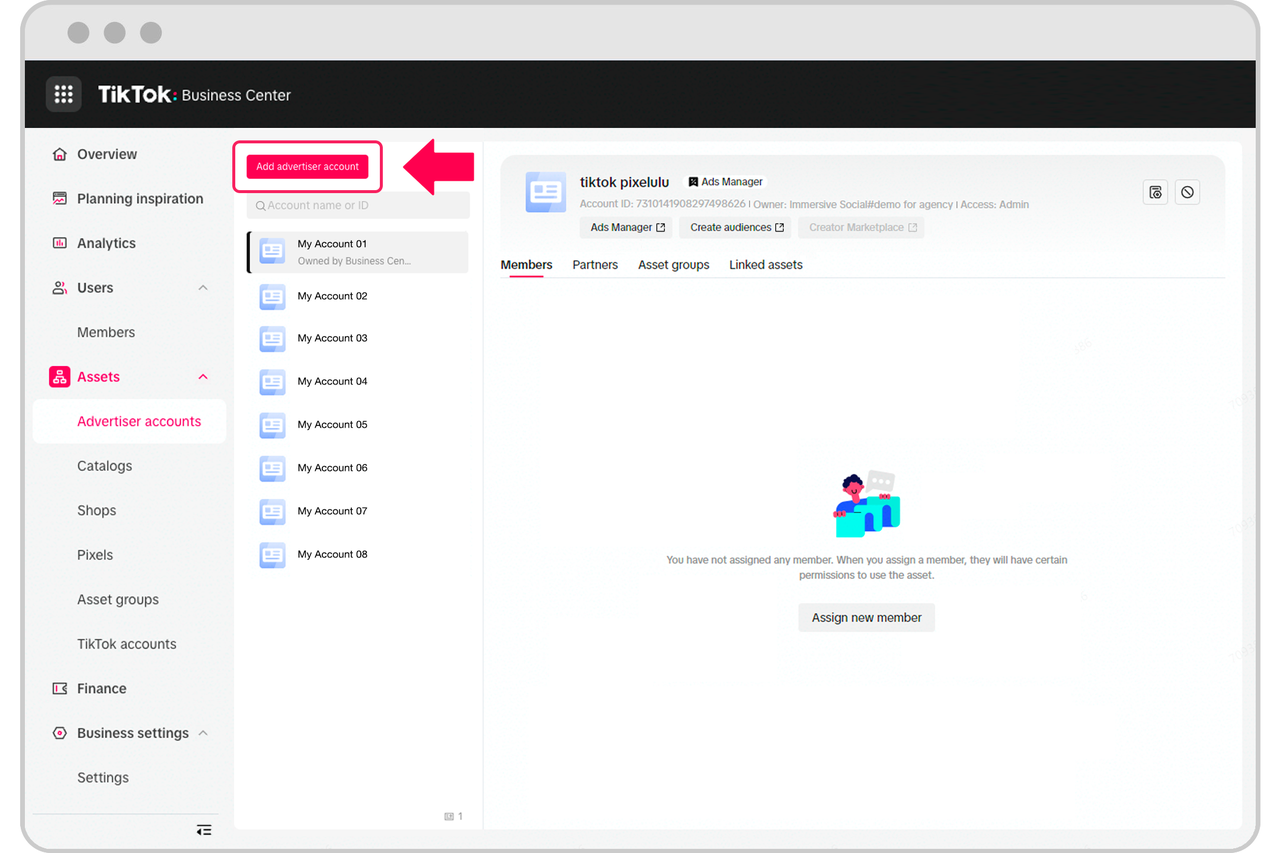
- Go to Advertiser accounts, and click Add Advertiser Account.
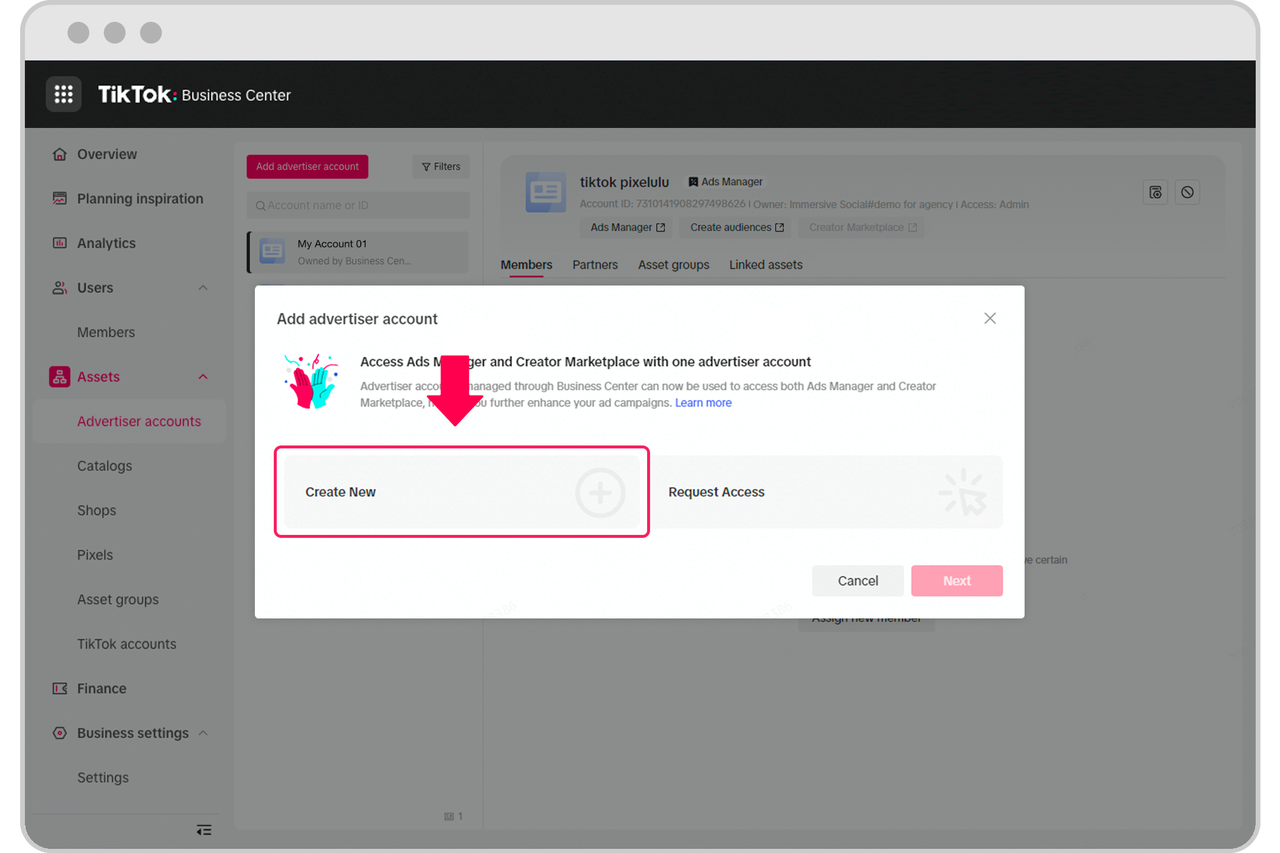
- Select Create New, and click Next.
- Fill in the required business information.
- If you use Business Center to promote your own business, you'll be asked to set up basic information such as account name, timezone, and billing information.
- If you are an agency using Business Center to promote someone else's business on their behalf, you'll be able to type in the company name of your client and select a matching name and address from a dropdown list.
Important: To prevent delays in account setup, try to match your business name to our records. When adding your ad account, use the search function on the page to find the matching company name. For example, if your business is a local branch of a company, ensure that the local name and not the headquarters business name is reflected. Any future modifications to the company name will trigger an ad review. Contact your representative if you are unsure or need assistance.
- Click Submit to finish.
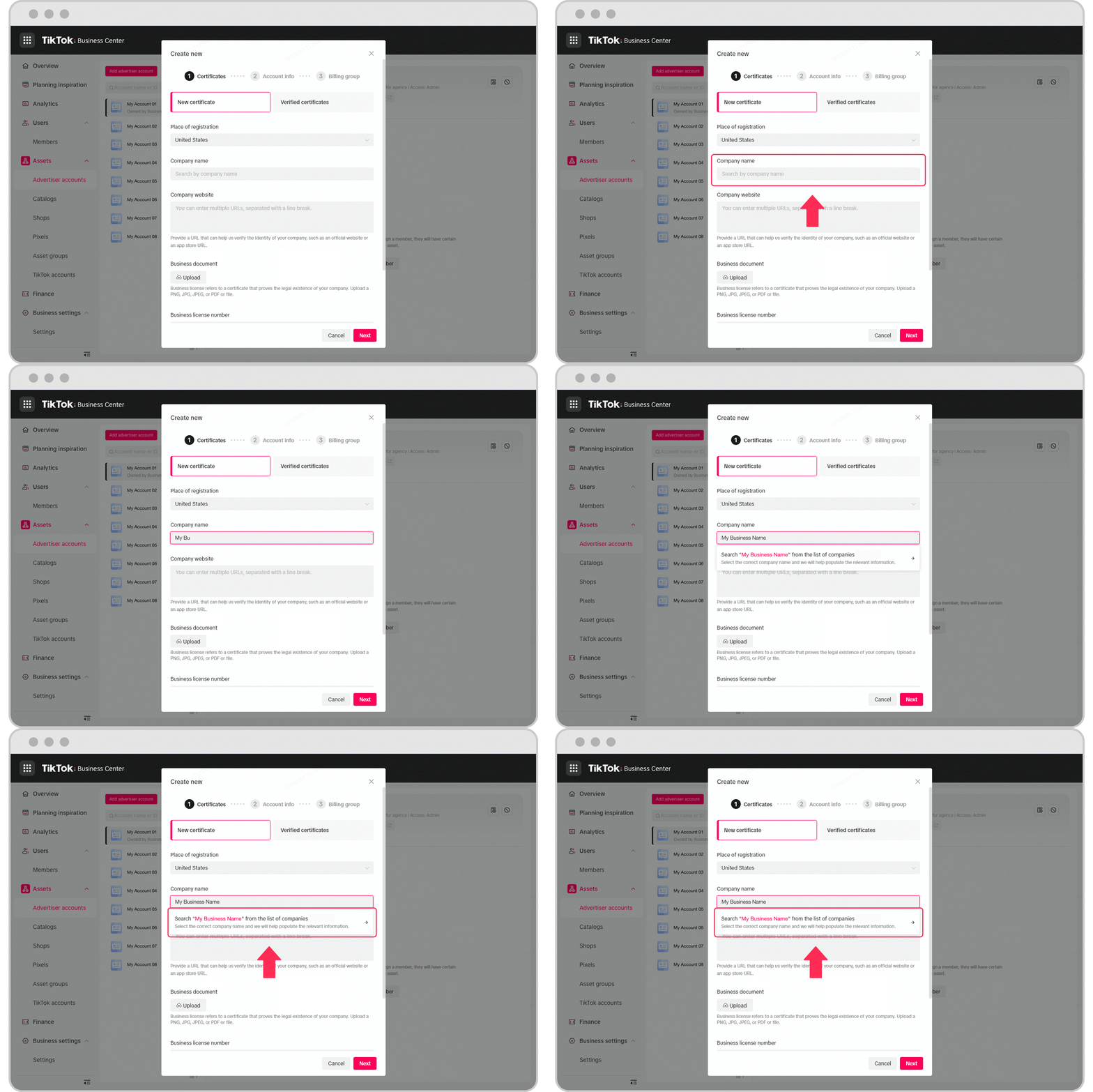
Launching for select customers: Agencies will have the ability to re-use their clients' Business Certificate when creating multiple ad accounts, reducing friction during this process. After an agency submits the Business Certificate information and it's approved for the first ad account, they can simply select the existing verified certificate for future ad accounts.
Request Access to Ad Accounts
To manage an ad account on behalf of someone else, or to work on an ad account owned by another business, you can request access to this ad account. Upon approval, you will be able to assign someone from your Business Center with permission to it.
To request access to an ad account:
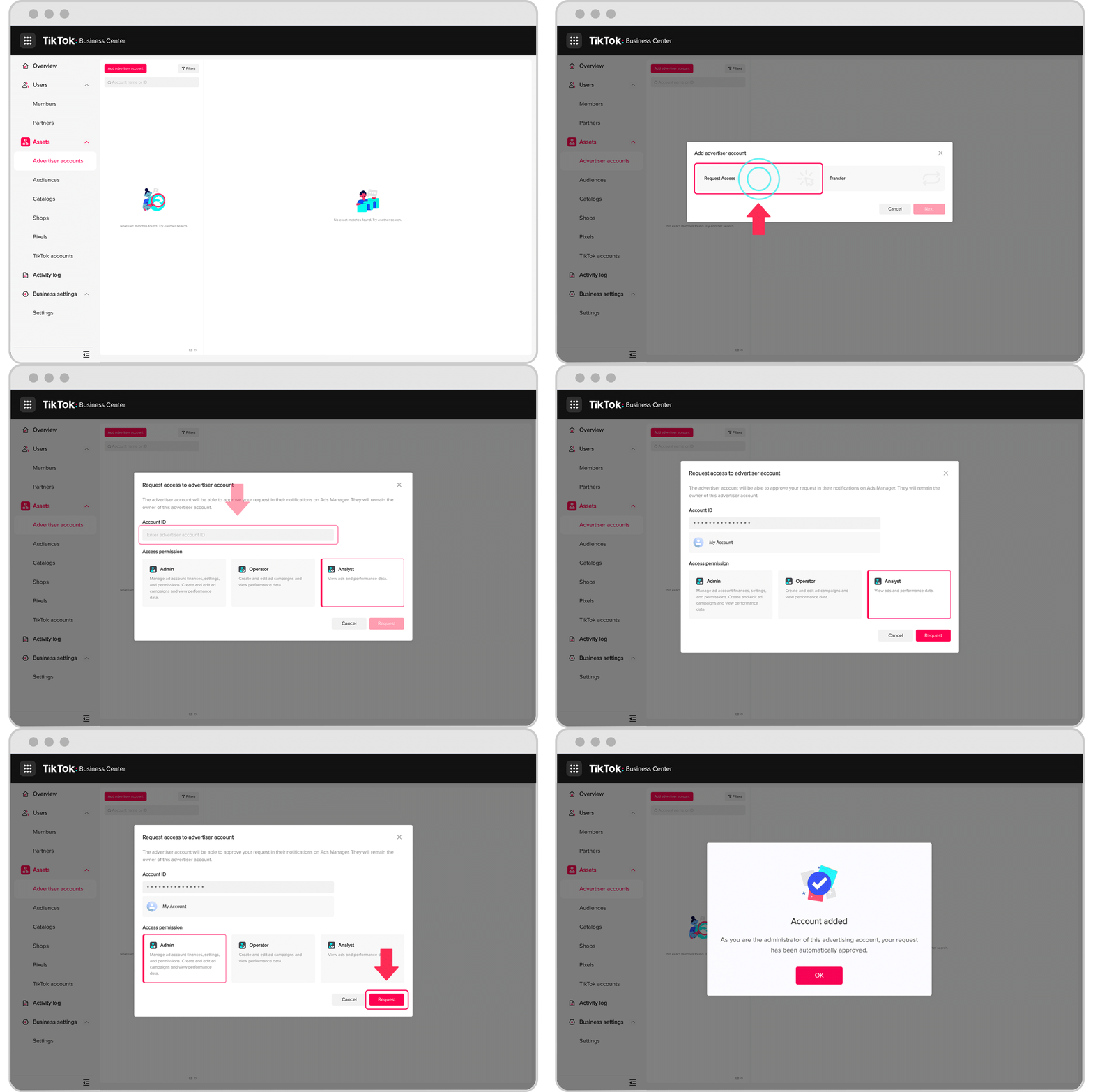
- Go to Advertiser accounts, and click Add Advertiser Account.
- Select Request Access, and click Next.
- Paste in the Account ID and select the Access Permission you want to request — admin, operator, or analyst. You can also choose to send an email notification to the ad account owner asking for approval.
After sending the request:
- If the ad account is created by a Business Center, please ask one of the ad account admins to accept the request in TikTok Ads Manager.
- If the ad account is created by an individual user and does not belong to any Business Center, please ask the ad account creator to accept the request in TikTok Ads Manager.
- The request can be found in TikTok Ads Manager's Notification, under Business Center.
After sending the request:
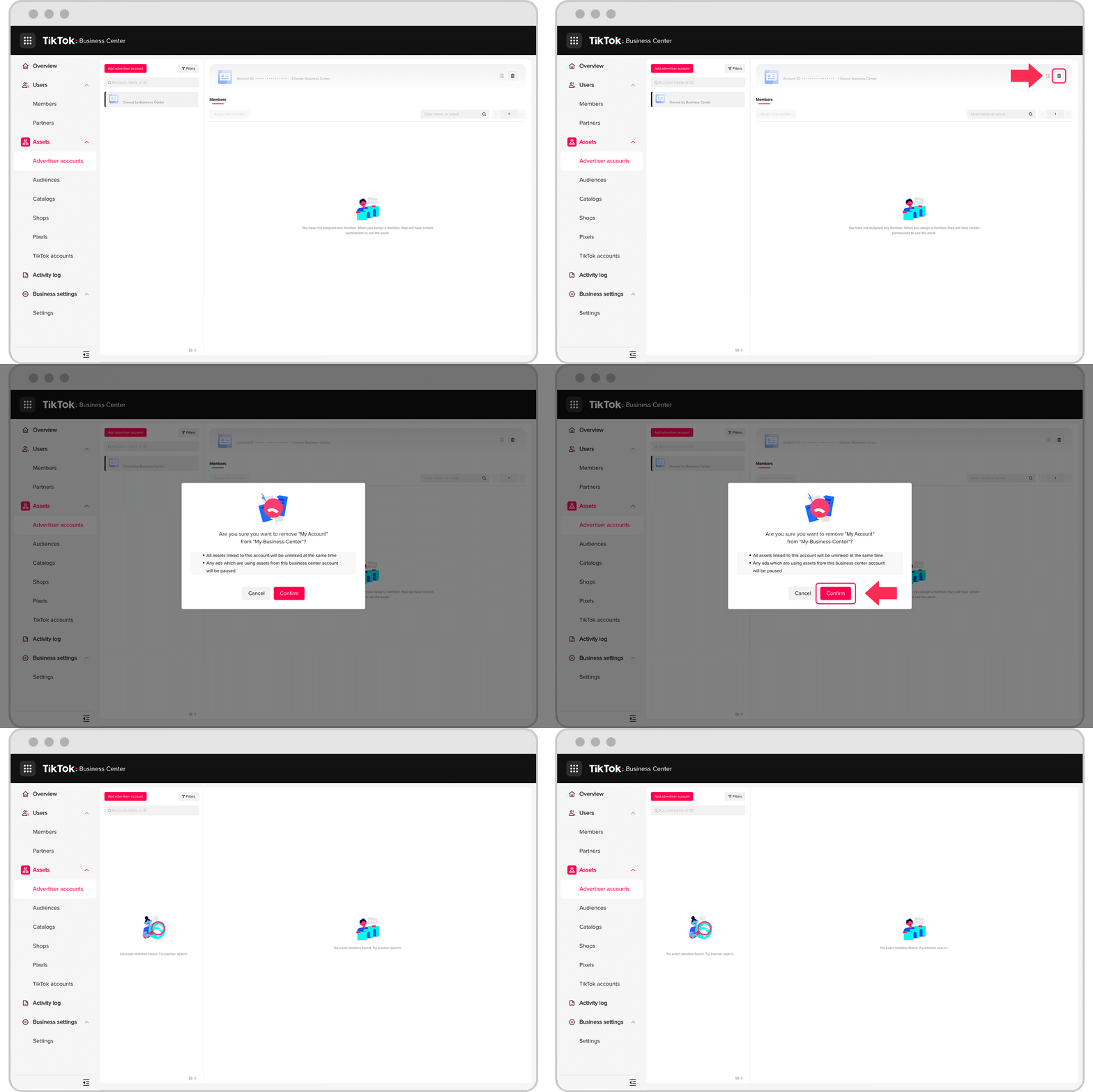
If you no longer need to manage this ad account and would like to remove it from Business Center, click the trash can icon and confirm the removal.
Note: You can't request access to a disapproved ad account.
7.2.2 How to access TikTok ad account?
Get a Gyxen Media TikTok Ad Account
Once a customer completes the registration for a Gyxen account, verification, and successfully tops up their account, Gyxen will provide an ad account to the customer. For detailed steps on how to get a TikTok Agency Advertising Account, please see the Workflow guide.
Why can I not access the Gyxen TikTok ad account?
Case 1: Ad account is closed for inactivity within 60 days
Because TikTok requires quota ad accounts, the platform will remove and close all the ad accounts that were not active for the last 60 days. We always send users a notification email 3 times to remind them before removing it, and in case we don't get a response, we will take action on it. In that case, please follow the instructions below:
- Regularly check emails from Gyxen to ensure you can reactivate your ad account as quickly as possible.
- If it's been over 60 days and you haven't clicked reactive, please contact our support team (AM/LC) directly to get more assistance.
- See Support Channels.
Case 2: Don't have permission to access the ad account
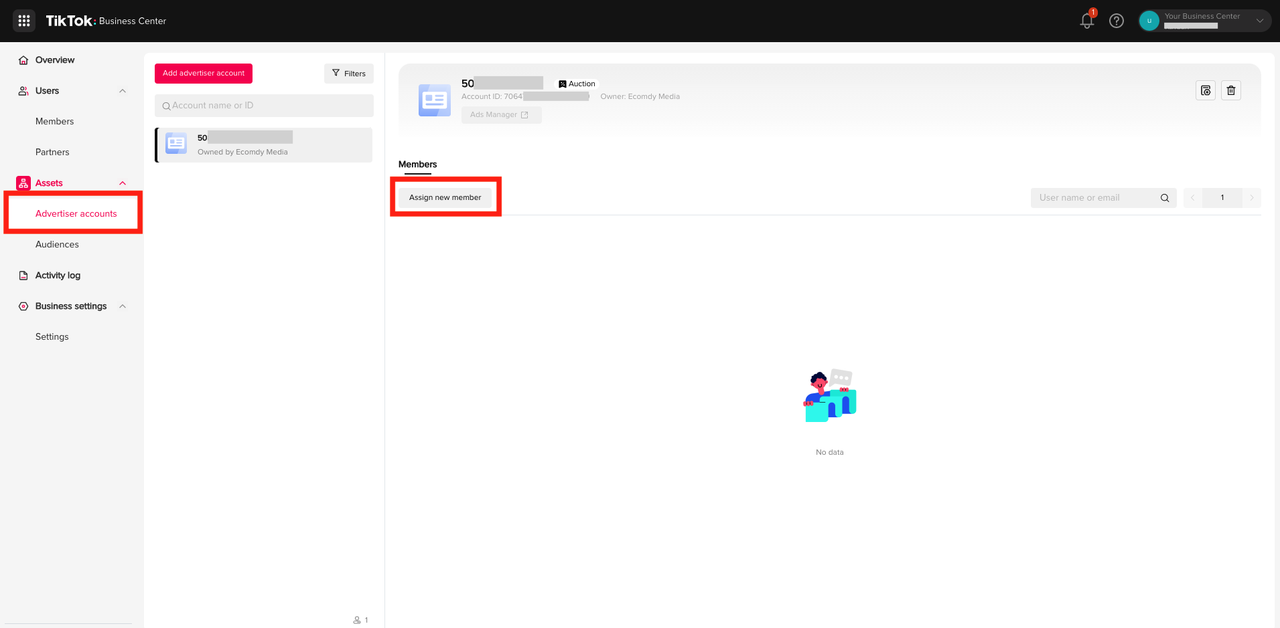
Access your ad account from your Business Center:
- Access your Business Center.
- In the tab Advertiser accounts or Member.
- Select the TikTok ad account shared by Gyxen Media.
- Click Assign new member.
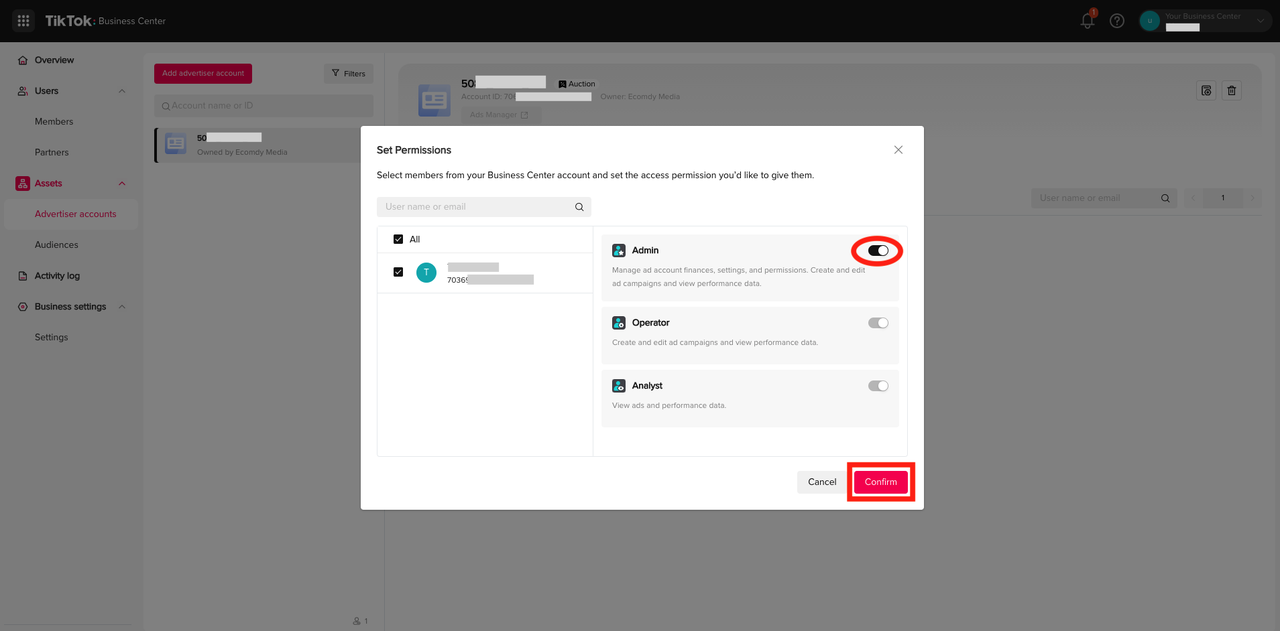
- Select a role for your own account Admin / Operator / Analyst (usually: Admin).
- Then, you can start your ad campaigns on TikTok.
7.3 Pixel Setting
7.3.1 Setup TikTok Pixel with Shopify
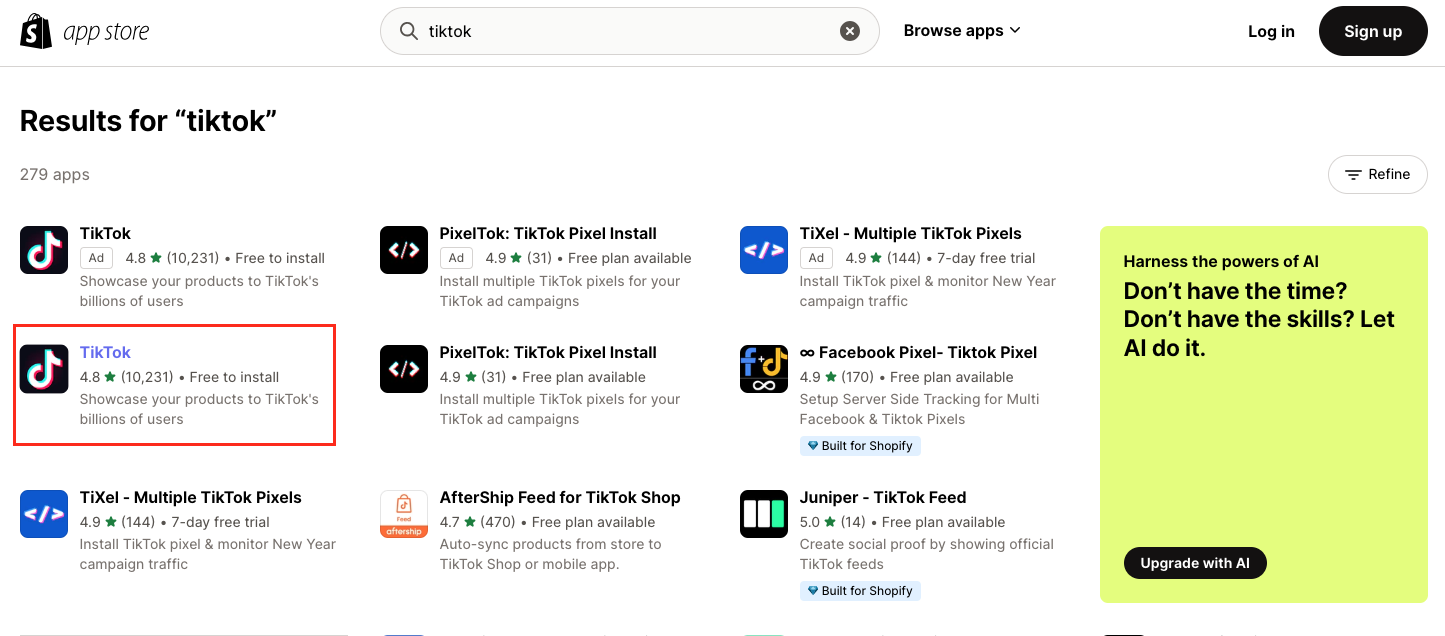
- Access https://apps.shopify.com/. Type TikTok into the search bar in the Shopify app store.
- Select the official TikTok app by TikTok Inc.
- Install the TikTok app.
- Connect your TikTok For Business account.
- Connect your Ad account.
- Create a new pixel
by clicking the Create Pixel button or selecting an existing pixel to connect to.
7.3.2 Setup TikTok Pixel with WooCommerce
Before getting started: TikTok x WooCommerce is not available in all markets. Check WooCommerce's platform for availability under the Details and compatibility tab.
Follow WooCommerce's official TikTok integration guide to connect your store and pixel.
7.3.3 Setup TikTok Pixel on other platforms
- ShopBase: Integrate TikTok Pixel on ShopBase following the platform's integration guide.
- Custom website: Install the TikTok Pixel base code on your website header and configure events for your conversion goals.
7.4 TikTok Tools for Your Ads
7.4.1 TikTok Business Help Center
The TikTok Business Help Center is a comprehensive resource for all things related to advertising on TikTok. It provides a beginner's guide, policies, and various tutorials to assist users. Key sections include basics, ad creation, account management, measurement, billing, and resources.
Access: https://ads.tiktok.com/help/
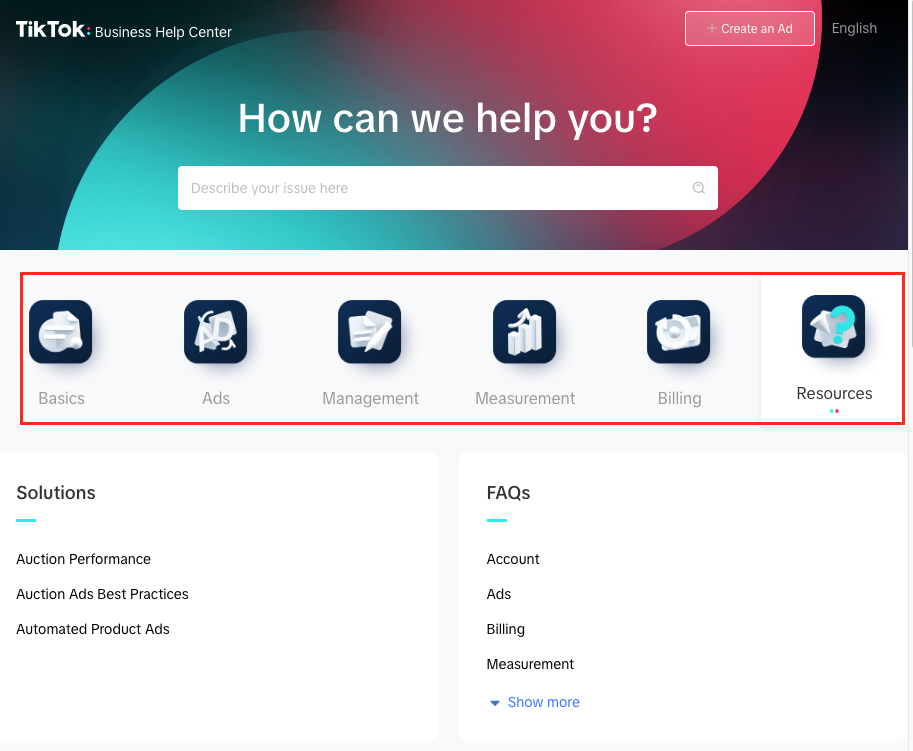
Click on each section, and you will find the necessary detailed information:
- Basics: Beginner's Guide, Advertising Policies
- Ads: Step-by-step guides on creating and optimizing TikTok ads.
- Management: Managing your TikTok ad account, ads and user roles.
- Measurement: Tools and methods for tracking ad performance and analytics.
- Billing: Information on billing methods, invoices, and payment issues.
- Resources: Additional help, including FAQs, advertising policies, and event handbooks.
7.4.2 Creative Center
What is TikTok Creative Center?
The TikTok Creative Center is a free resource library for anyone looking to get their feet wet in digital advertising. Members can range from digital marketers, and small businesses to social media influencers and upcoming content creators.
Using this platform, users can discover the latest trends for hashtags, songs, and creators. You can also download video soundtracks, browse creative templates and utilize their ads dashboard to view competitor ads. It's a highly resourceful tool to strategically build a TikTok brand.
How to Use TikTok Creative Center's Features
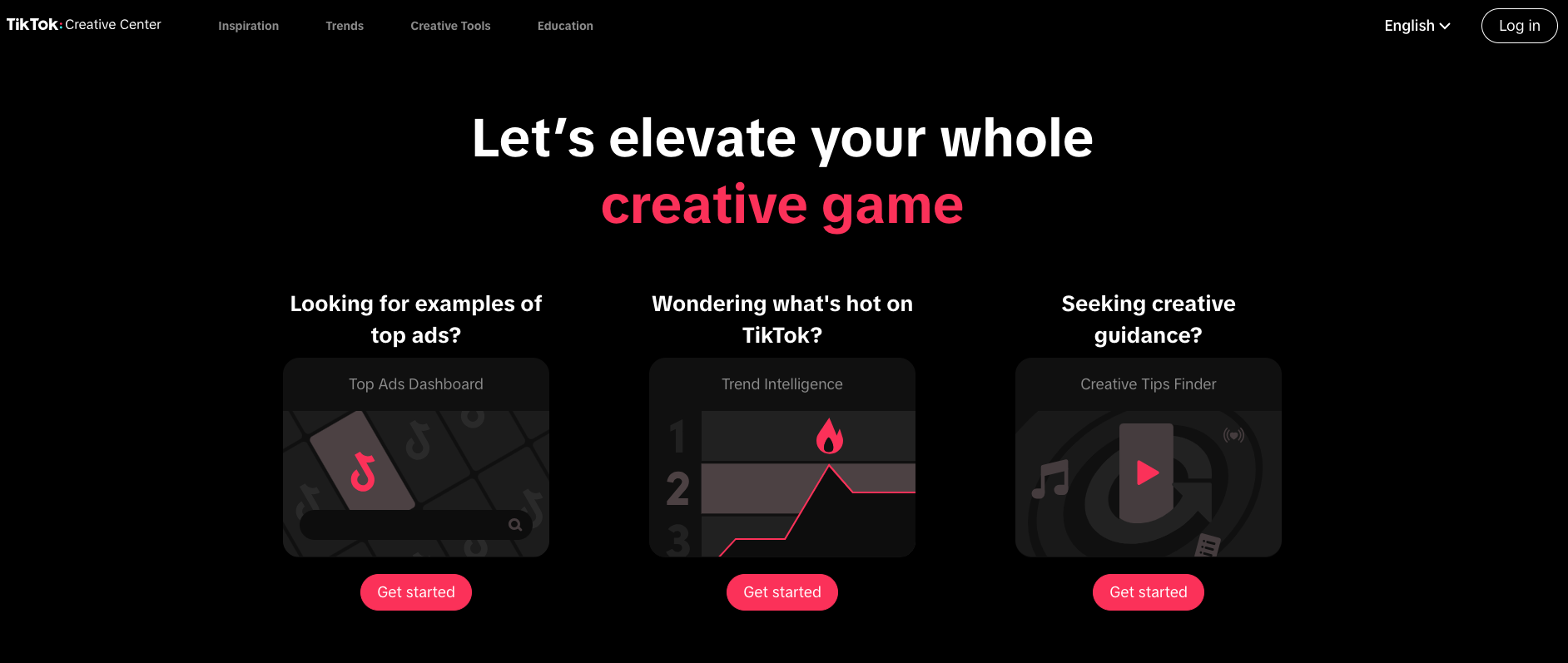
Inspiration
It is a library of top-performing ads which showcases TikTok's best content. These can then be studied and applied for your own strategies, ensuring you're never creating an ad entirely from scratch.
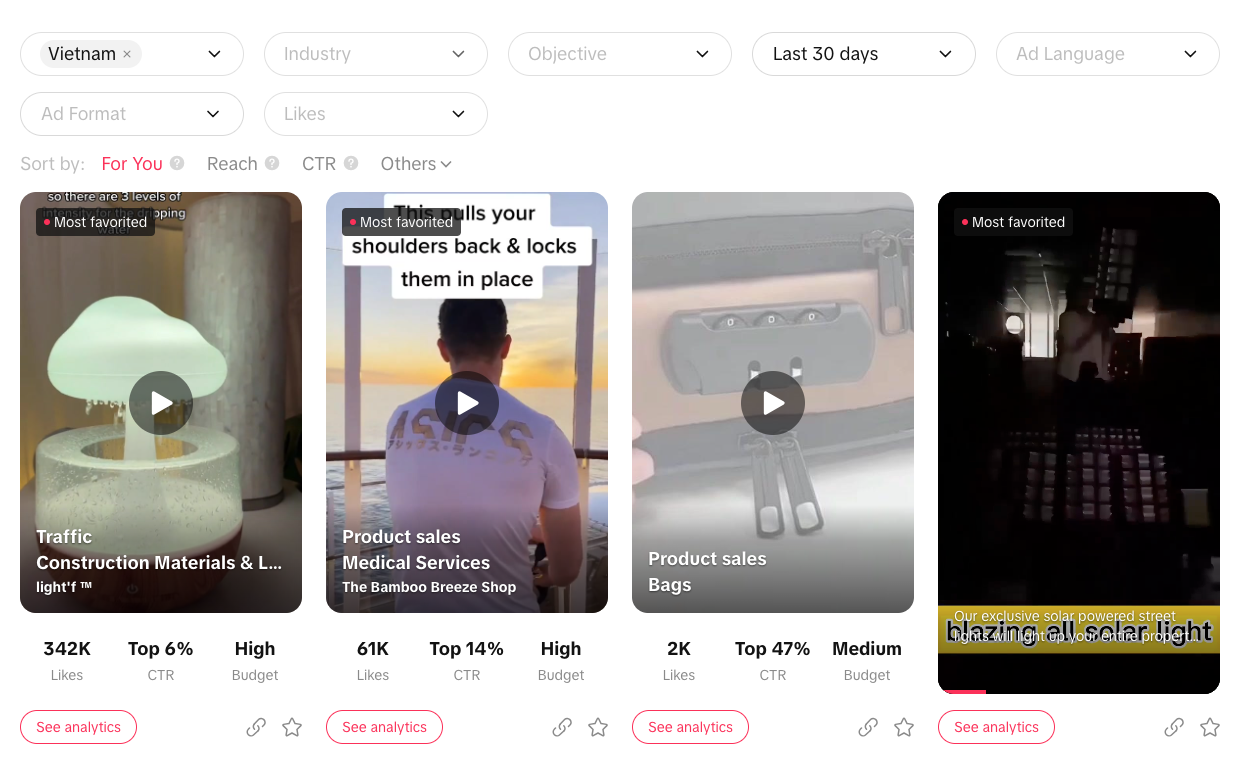
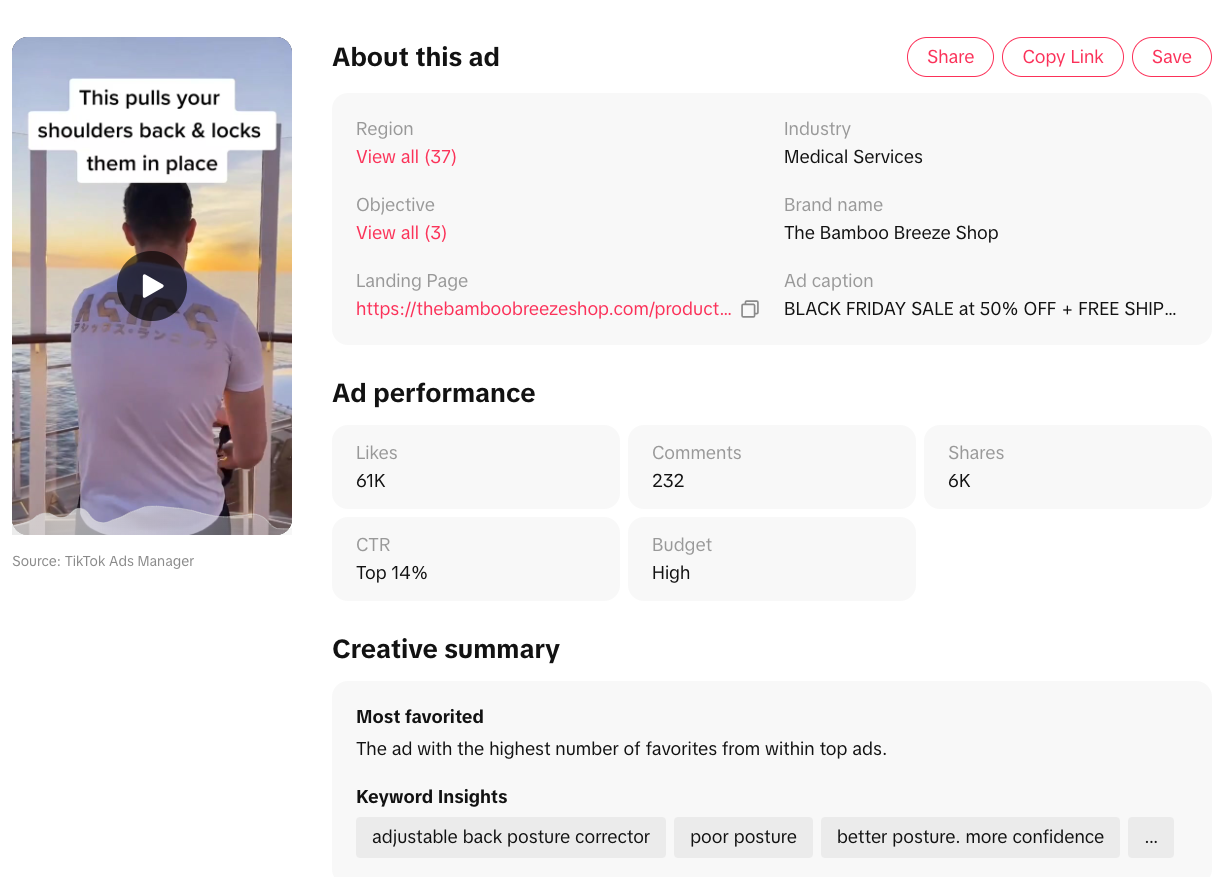
- Top Ads Dashboard: Filter through the best TikTok ads relevant in your industry by country, industry, campaign objective, likes, duration and date published. Alternatively, type in your competitor's brand to see all running ads, along with other metrics such as views, likes and comments.
- Top Ads Spotlight: Find inspiration from standout Top Ads, handpicked by TikTok creative experts each month.
- Keyword insights: Find script keywords that encourage users to click i.e. play now, free shipping, download now etc.
- Creative insights: Find specifically how top-performing ads increase engagement i.e. a puzzle, earn rewards call to action, or interesting fact hook.
- Top products: Discover winning products in your region and category.
Trend Discovery
The Trend Discovery section analyzes all relevant trends and figures on every aspect of the platform — hashtags, songs, creators, TikTok Videos, Trend Perspectives and more. By keeping up to date on current trends, your ad campaigns will always be in sync with what the audience wants.
Creative Tools
- Video editor: Upload source clips and adjust speed, add text, effects and transition clips.
- Video Templates: Select a TikTok template and add relevant photos, text, CTAs and music.
- Interactive Add-on: Invite users to engage with the ad through novel interactions.
- Script Generator: Enter necessary information and the AI will generate a suitable script.
- Commercial Music Library: Explore commercial music by various criteria.
How to Find Video Trends Using the TikTok Creative Center
- Go to Top Ads Dashboard — hover over Inspiration and select Top Ads Dashboard.
- Filter trending results by location, industry, objective and so on. Alternatively, type a competitor for reference.
- Analyze industry video ads — click see analytics of the top performing ads and see which video frame has the most clicks.
- Save ads to collections for future reference.
7.4.3 TikTok Ad Policy
7.4.3 TikTok Ad Policy
TikTok Advertising Policies are largely categorized into two sections:
TikTok Advertising Policies — Industry Entry
This section provides information about the types of products and services that can be advertised through TikTok Ads. Please review if the products or services that you intend to promote are acceptable in the desired target region.
TikTok Advertising Policies — Ad Creatives
TikTok Advertising Policies — Ad Creatives sets out the types of advertising content that is prohibited or restricted on our platform. These policies serve as a guideline to review the eligibility of an advertisement placed with us by advertisers.
Ad review process
As part of the TikTok ads review process, we take the following into consideration:
- Eligibility of the promoted product or services
- Ad creative which includes: caption or text, images or visual content, audio content, and any other content published to target audience
- Targeted region and age group
- Consistency between an ad creative and the landing page
- Functionality and eligibility of landing page
While some TikTok ads might take longer than usual for the review process to complete, most are reviewed within 24 hours. Once your ad has been approved and published, you will receive a notification. If the ad is rejected and there are changes that can be made to help publish your ad, you will be notified through Ad Group on the TikTok Ads Manager platform.
Ad Review Checklist
- Ad Review Checklist: Landing Page
- Ad Review Checklist: Ad Messaging
- Ad Review Checklist: Ad Language
- Ad Review Checklist: Use HTTPS Website Link
7.5 Set up Campaign
Learn about setting up and best practices for TikTok Ad campaigns.
7.5.1 Spark Ads and Non-Spark Ads
Spark Ads is a native ad format that enables you to leverage organic TikTok posts and their features in your advertising. This unique format lets you publish ads:
- Using your own TikTok account's posts.
- Using organic posts made by other creators
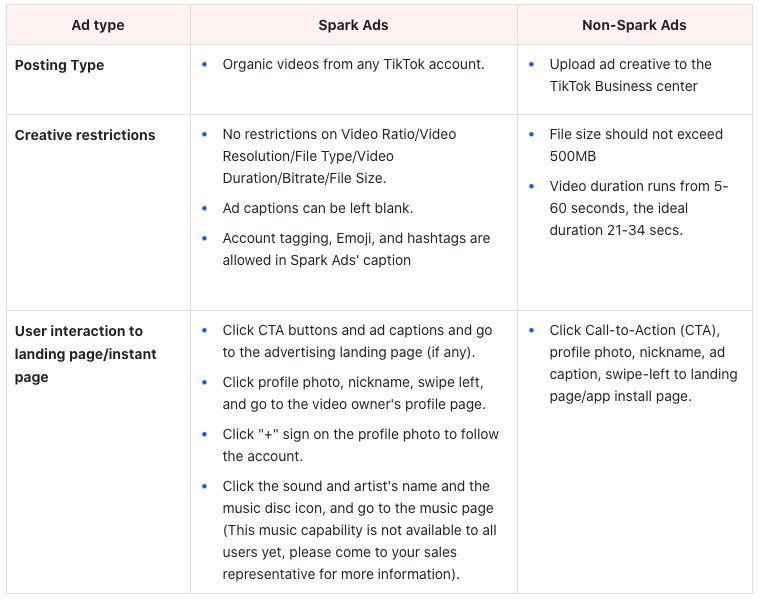
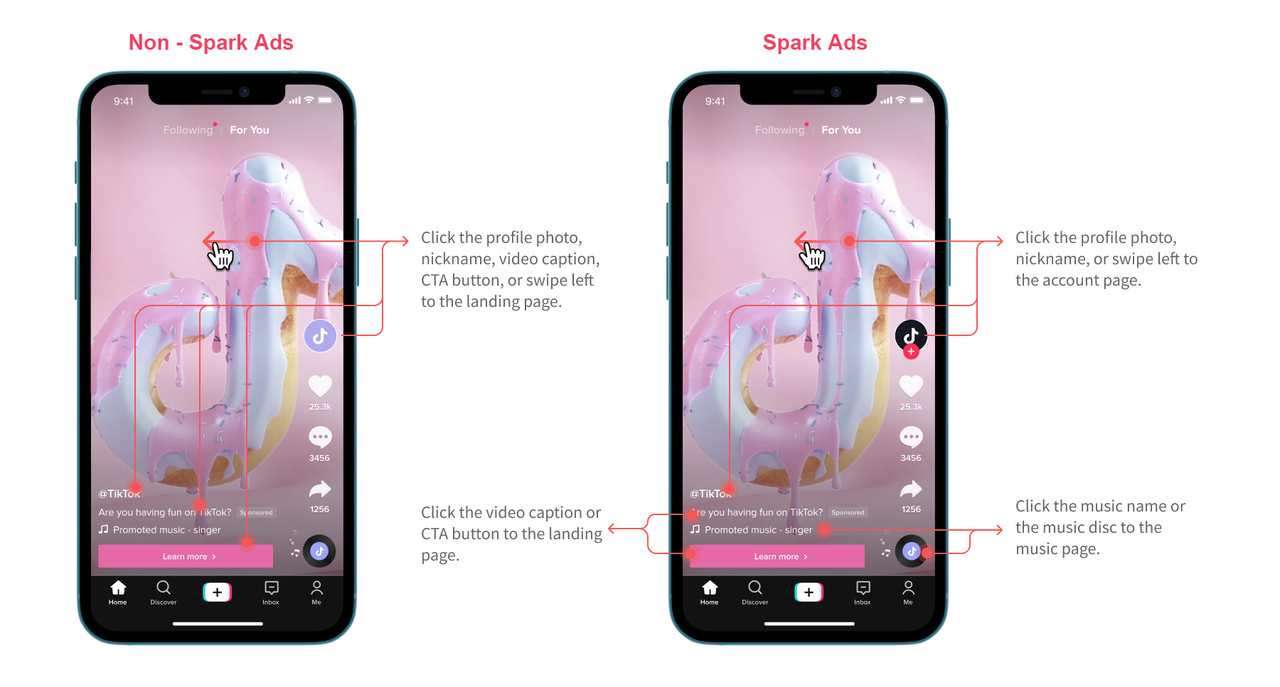
— with their authorization.
7.5.2 Campaign Objective & Structure
TikTok Ads Structure
Ads run on TikTok Ads Manager are structured into 3 parts: Campaigns, Ad Groups, and Ads. Understanding how your campaigns are structured will help you better set up target audiences, allocate your budget and design creative.
About the Campaign Level
The first step to running ads on TikTok Ads Manager is to create a Campaign. Determine your campaign objectives (or goals), which are the final results you want your ads to achieve:
- Select the campaign objective
- Set the budget for the campaign
- Start creating an ad group
You can choose from various objectives like getting more people to install your app (App Install) or driving more people to your site (Traffic). At the campaign level, you will also set your campaign budget, either daily, lifetime, or no limit.
Within each campaign, you will have multiple ad groups, which will enable you to optimize your ads and measure performance.
About the Ad Group Level
You can set specific ad placements, audiences, target audiences, campaign budgets, schedule, optimization goals, and bids for each ad group:
- Choose placements
- Set your target audience
- Set up a campaign budget and schedule
- Set optimization goals and bidding method
- Start creating ads
The ad group level is where a lot of the action takes place and is critical for determining how your ads will run.
About the Ad Level
Ads are the content that you ultimately present to the target audience:
- Name Your Ads
- Select Ad Format
- Enter Ad Details
- Upload your media/creative
- Set your display name and profile image
- Add text, including copy and call-to-action buttons
- Add Tracking
Campaign objective
Your advertising objectives are goals that you want to set and meet so you can help grow your business and engage your audience. In your TikTok Ads Manager account you can select from these three categories of objectives: Awareness, Consideration, and Conversion.
Awareness
Use the Awareness objectives when you want to grow awareness about your product and reach people who are most likely to view your ad and remember it.
- Reach: Show your ads with the maximum number of impressions in your targeted audience at the most efficient price.
Consideration
An objective that gets people to think about your business and seek more information.
- Traffic: Drive people to any URL, such as your website's landing page, a blog post, an app, etc.
- Video Views: Maximize the plays of your video ads from audiences most likely to engage with them.
Community Interaction
- Business Goal: Get more people to engage with your TikTok account by driving followers or increasing traffic to your profile page.
Conversion
Use the Conversion objectives when you want to encourage people to perform an action, such as buying your product or installing your app.
- Product Sales: Sell products from your TikTok Shop, website, and app.
- Website Conversions: Encourage people to take specific actions on your website.
- Lead Generation: Collect leads for your business with a fast-loading, customizable instant form.
- App Promotion: Encourage new people to use your app. Re-engage existing users to take action in your app.
7.5.3 Campaign Budget Optimization
About Campaign Budget Optimization
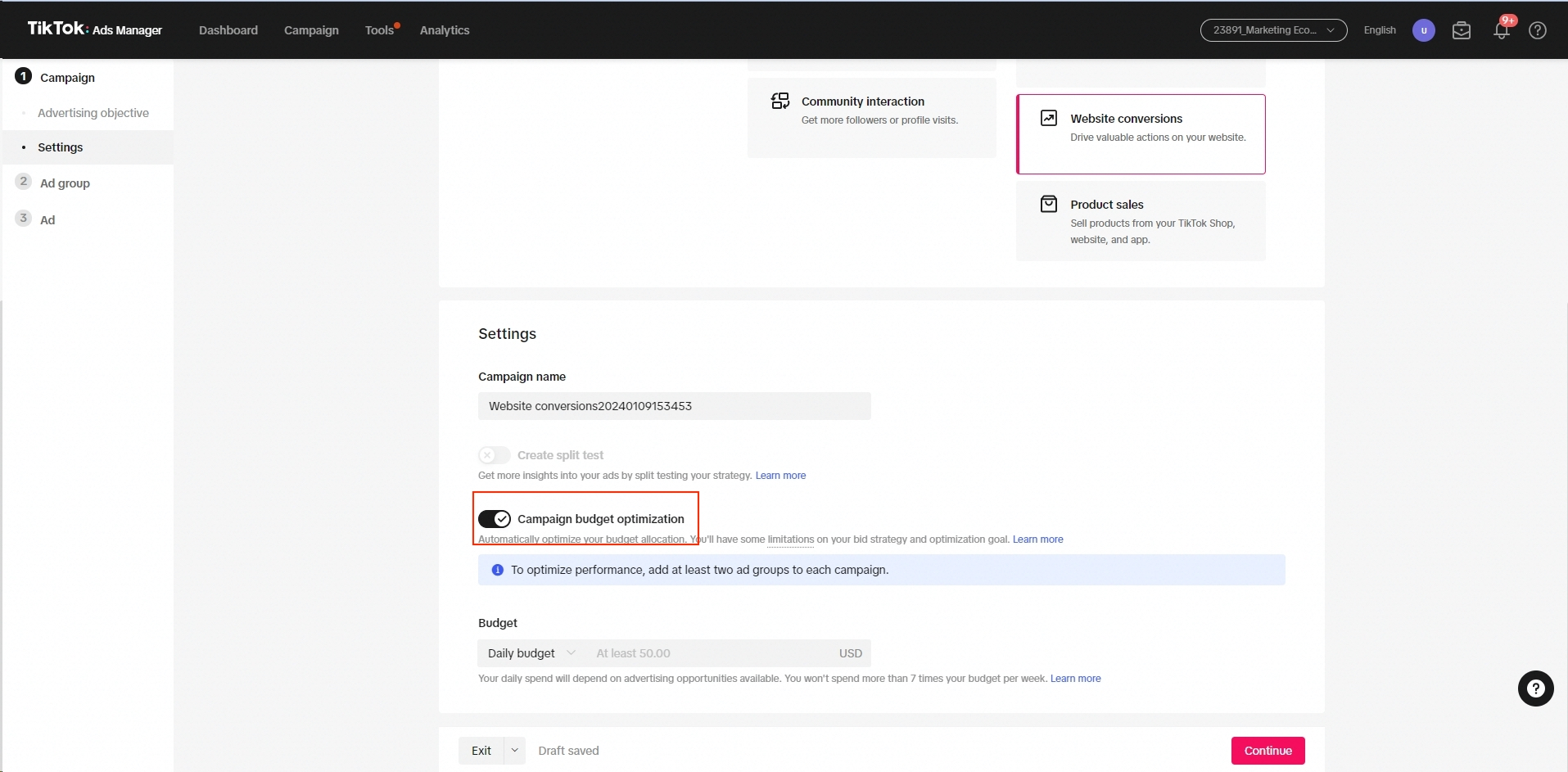
Campaign Budget Optimization (CBO) is a feature that allows you to optimize your budget at the campaign level instead of the ad group. To create a campaign using Campaign Budget Optimization, set up your campaign within the following parameters:
- Advertising Objective: Video View, Traffic, Catalog Sales, Lead Generation, Community Interaction, App Promotion, Website Conversions, and Reach
- Bid Strategy: Maximum Delivery and Cost Cap
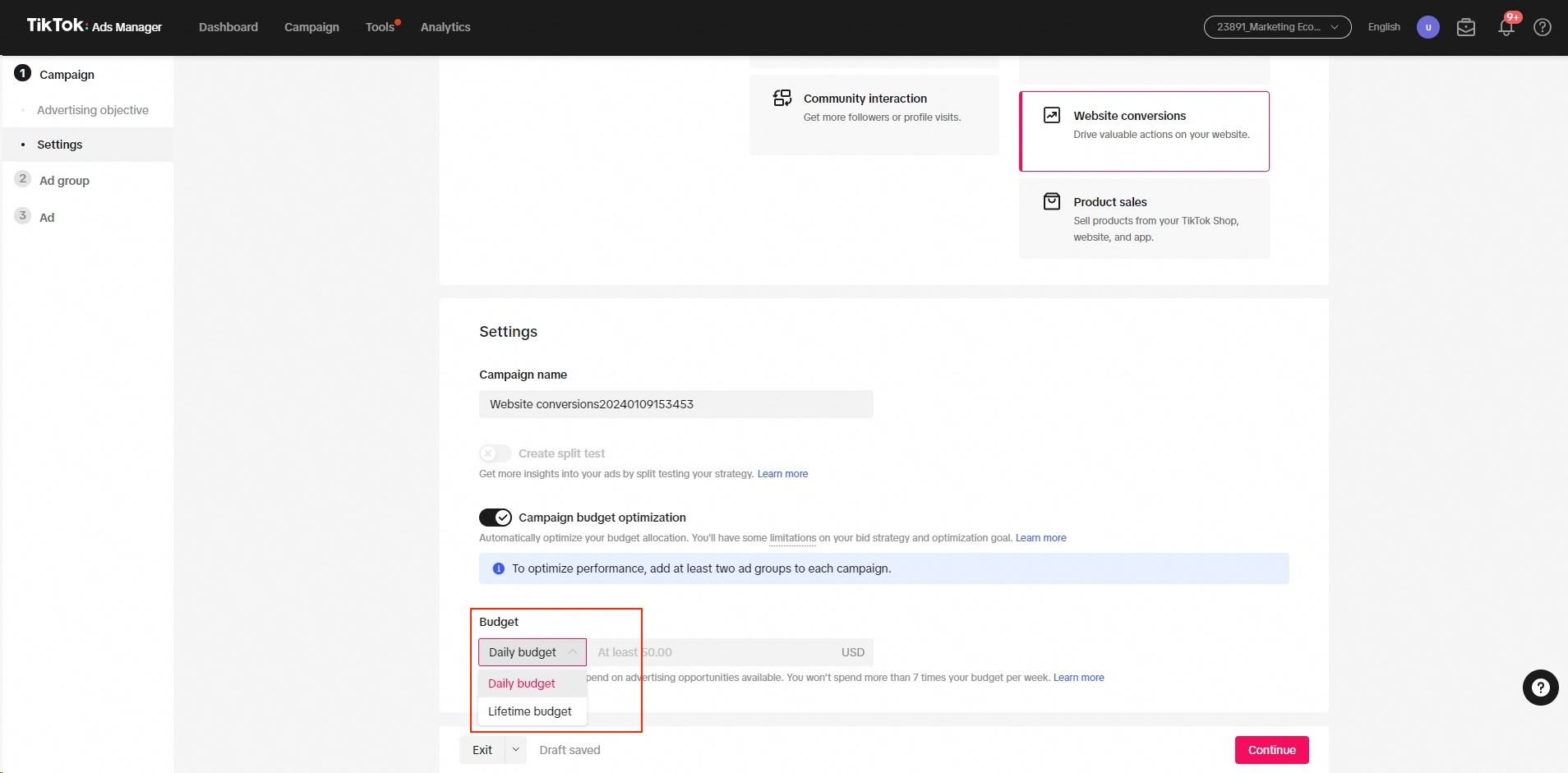
- Budget Mode: Daily Budget and Lifetime Budget
- Delivery Type: Standard
- Split Test: Not supported
To enable Campaign Budget Optimization:
- Create a new campaign.
- Select a supported Advertising Objective.
- Turn on the Campaign Budget Optimization toggle.
- Select a Budget; all ad groups in this campaign will share this budget.
- Select the Bid Strategy when setting up the first ad group.
- Under Delivery Type, Standard is the only available option.
- Configure the rest of your ad group settings
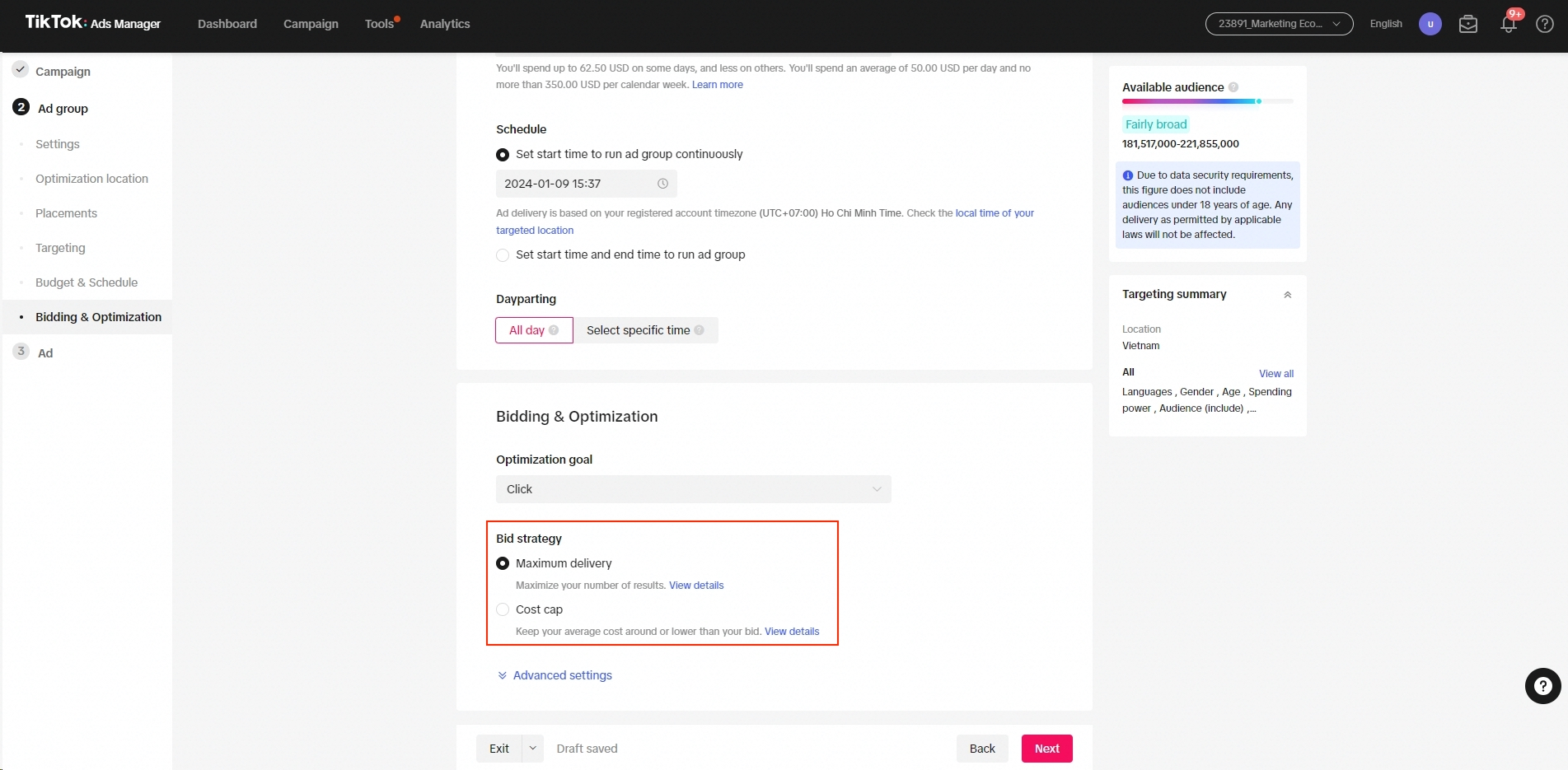
and create your ads. All ad groups should share the same Optimization Goal.
Best practices for campaign budget optimization
Campaign budget
- Set your actual target campaign budget.
- Make sure your ad group budget covers at least 50× target CPA when running App Install.
- Ensure your ad group budget covers at least 20× target CPA while running either AEO or Conversions.
Number of ad groups
- Ensure at least 3–5 unique and active ad groups per campaign, and 2–3 unique creatives per group.
NOTE: CBO does not function when there is only 1 active ad group in the campaign.
Optimizations
- Wait for at least one day and 50 conversions before making new adjustments.
- When adjusting your budget, try to control each adjustment within 30% of the current daily budget.
NOTE: TikTok Ads Manager requires all ad groups within a CBO campaign to apply the same optimization goal.
7.6 Setup an Ad group
Learn about setting up and best practices for TikTok Ad group.
Targeting
When setting up a TikTok ad group, targeting is a crucial step. There are 4 TikTok Ad targeting options:
- Demographics (location, languages, age, gender, household income)
- Audience (include and exclude)
- Interests and behaviors
- Device (operating system, OS versions, device model, connection type, carriers, device price)
Audiences
The audience are the users on TikTok who may see your ad. There are 2 approaches:
- Narrow Targeting: The system will find the best customers according to your specific targeting settings, then show your ads to them.
- Broad Targeting: Leave the targeting options blank and the intelligent algorithm will help you find potential customers.
Related Information:
7.7 Bidding
7.7 Bidding strategy
TikTok Ads Manager currently supports 2 bidding strategies:
- Cost Cap (goal-based): Control the average cost per result from the auction.
- Maximum Delivery (spend-based): Maximize the number of results for your budget.
Which bidding strategy is recommended?
Maximum Delivery
Choose Maximum Delivery if you want to scale and are flexible with CPA. Delivery expectations:
- Stable budget consumption (daily spend).
- Flexible CPA in response to competition.
Cost Cap
Choose Cost Cap if you want to control your CPA. Delivery expectations:
- Stable CPA (equal to or lower than your bid)
- Flexible budget consumption (daily spend)
NOTE: Consider running Maximum Delivery & Cost Cap strategies at the same time in different ad groups.
7.8 Setting up Best Practice
7.8.1 Create an Ad group
Please refer to Create an Ad group for more details.
7.8.2 Best Practice
How many ad groups?
It is recommended to have 3–5 diversified ad groups within 1 campaign. Diversified ad groups consist of multiple ad groups with different targeting, bidding strategies, optimization goals, and creatives.
NOTE: Duplicate ad groups without any adjustment will not help the ads explore and reach a new audience.
Targeting
- Ensure available audience is Broad, Fairly broad or at least Balanced to avoid budget under consumption.
- Create Custom Audience to retarget your audiences & leverage lookalike audience to expand your audiences.
Bidding Strategies
- If you are a new advertiser, start with Maximum Delivery to find out the cost per result for your budget level, creative and targeting options.
- If you are using Bid/Cost Cap, bid more aggressively during learning phase to participate in more auction opportunities.
Set an ad group Budget
Use Daily Budget instead of Lifetime Budget to keep better control over your CPA and budget consumption.
- Complete payment: 10 × target CPA
- Other events: 20 × target CPA
- Minimum weekly budget: 50 × target CPA
7.9 Setup an Ad
Learn about setting up and best practices for TikTok Ad.
Creative Best Practices
To build creative engagement, ensure the following best practices:
| Guideline | Recommendation |
|---|---|
| 3–5 creatives | Add at least 3–5 unique creatives per ad group. Upload 3–5 new creatives when creative fatigue is experienced. |
| >720p+ | Video resolution should be > 720p+ for higher performance |
| Sound on | Video should have audio of any kind to capture more attention |
| 21–34s | Video should be longer than 10s and ideally, 21–34s |
| Mobile-first format | Video should be vertical, 9:16 ratio and full screen |
| Landing page | Landing page load time should be < 3–8s to minimize bounce rate |
7.10 Best practice for ad creative setting
Set up an Ad
Please refer to Create an Ad for more details.
Best Practice
Follow the Creative Best Practices table above: use 3–5 unique creatives per ad group, >720p+ resolution, sound on, 21–34s duration, vertical 9:16 format, and landing page load time under 3–8 seconds.
7.11 Smart Creative
What is Smart Creative?
Smart Creative is TikTok's next-generation automated creative solution that enables advertisers to quickly combine creative assets while driving performance with anti-creative fatigue strategies. Smart Creative ensures that the potential of ad combinations are maximised through ad group fatigue detection and auto-refreshed strategies.
Why use Smart Creative?
- Maximize the value of your time: Combines videos/images, text and call-to-action to create multiple variations of ads.
- Maximize performance of campaigns: Creative fatigue detection and auto-refreshes ad group to prolong ad group lifespan.
- Maximize the value of every creative produced: Explore new and historical creatives in ad groups.
Key Features
- Creative Combination: Automatically combining your assets and texts.
- Creative Selection: Continuously auto-selecting the top performed creatives and prioritizing them in delivery.
- Budget Allocation: Budget allocation in delivery to prolong the lifespan of ads and achieve efficient cost per results.
7.12 Learning Phase
What is Learning phase?
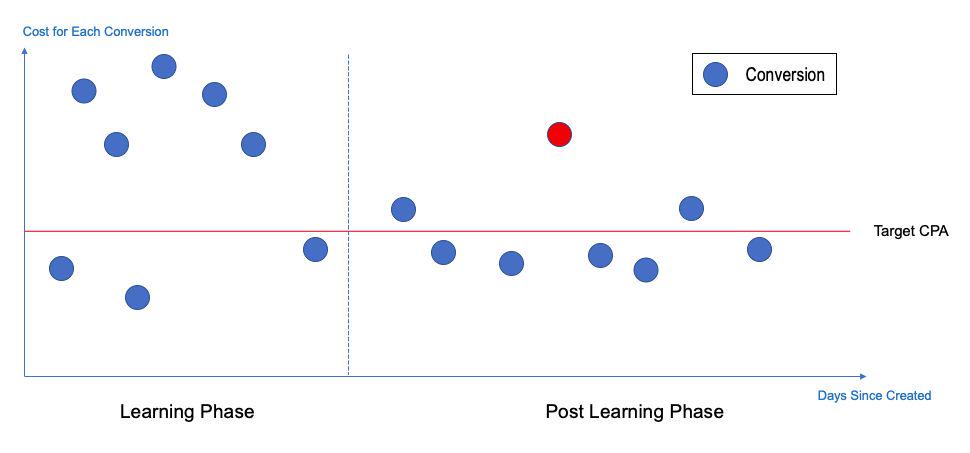
Learning Phase is a process in which our ad system explores new users and helps ads reach the most relevant target audience at the initial stage of ad delivery.
- Learning phase is NOT defined in days. First ~50 conversions is considered Learning phase.
- During this process, delivery can be slow or non-existent and CPA will fluctuate day to day.
- If an ad group has not passed or fails to pass the learning phase, the delivery will be unlikely to scale up.
Tips to pass the learning phase faster
- Ad group daily budget should be minimally 30× of CPA bid.
- Give more bid headroom; set ~30% higher CPA than your target initially.
- If an ad group is struggling to deliver initially, increase bid price or broaden targeting.
- If it continues to fail to pass the learning phase after 5 days, turn off the ad group and try a new ad group with different creative.
- Avoid making any changes and keep monitoring the campaign during the learning phase.
- Ensure substantial flight duration (minimum 2 weeks) to facilitate system learning.
- An oCPM ad group can expect a stable CPA after achieving 50 conversions.
7.13 Thing to note
If you don't have any experience in running TikTok ads, here are some recommendations for you.
1. TikTok ad video
- Create videos with organic content, not like advertising video.
- Add at least 3–5 unique creatives per ad group.
- Video resolution should be > 720p+ for higher performance.
- Video should have audio of any kind to capture more attention.
- Video should be longer than 10s and ideally, 21–34s.
- Video should be vertical, 9:16 ratio and full screen.
The best interactive video forms:
- Video of reviewing products.
- Video of reaction when unboxing products.
- Video of users' experience with real emotion.
- Video follows current trends.
2. Setup campaign
- Do not choose too deep conversions like "complete payment" — choose shallower conversions like "add to cart" or "place an order" for Pixel to collect data first.
- Do not target multiple countries in the same ad group.
- Make sure your ad group budget at least covers 50 × target CPA.
3. Setup Pixel
Ensure that your website/landing page has the pixel installed:
- ShopBase Setup Pixel
- WooCommerce Setup Pixel
- TikTok Setup Pixel on other websites
4. Tracking and optimizing campaigns
Don't spend / slow spend:
Check if the pixel is working properly:
- Method 1: Install TikTok Pixel Helper Extension.
- Method 2: Test Your Pixel's Events directly from TikTok Ads Manager.
Check the impressions that are high or low to change targeting, and increase the budget daily. If the impression is high, you can increase the budget and extend the target range to promote spending.
Low conversion rate:
If impressions are high, clicks are high but the conversion is low, optimize the video content. After checking all indicators about the campaign setup and video views, if conversion is still low, the reason may be from the product (high price, poor competition, not interested in the targeted country).
Low CTR:
Optimize or change video content. After that, keep tracking metrics and solve the same low conversion rate situations.
5. Common errors cause ads to be rejected
Currency error: The currency mentioned in the video and Landing Page is inconsistent with the targeting country.
Install Currency Convert for the website and limit reminders of product prices. Limit targeting multiple countries with different currencies in the same ad group.
Language error: The language of the ad creative and landing page must be in a language acceptable for the target market.
Use subtitles for videos, and automatic translation for Landing Page.
Landing page error: Lack of Information (Contact Details, Company Name, Company Address, Terms and conditions, Shipping Information...)
Learn more: TikTok Advertising Policies — Ad Creatives and Landing Page.